> ## Documentation Index
> Fetch the complete documentation index at: https://docs.inceptia.ai/llms.txt
> Use this file to discover all available pages before exploring further.
# Agent Handoff
> Define when and where the agent transfers control of the conversation
## What agent handoff is
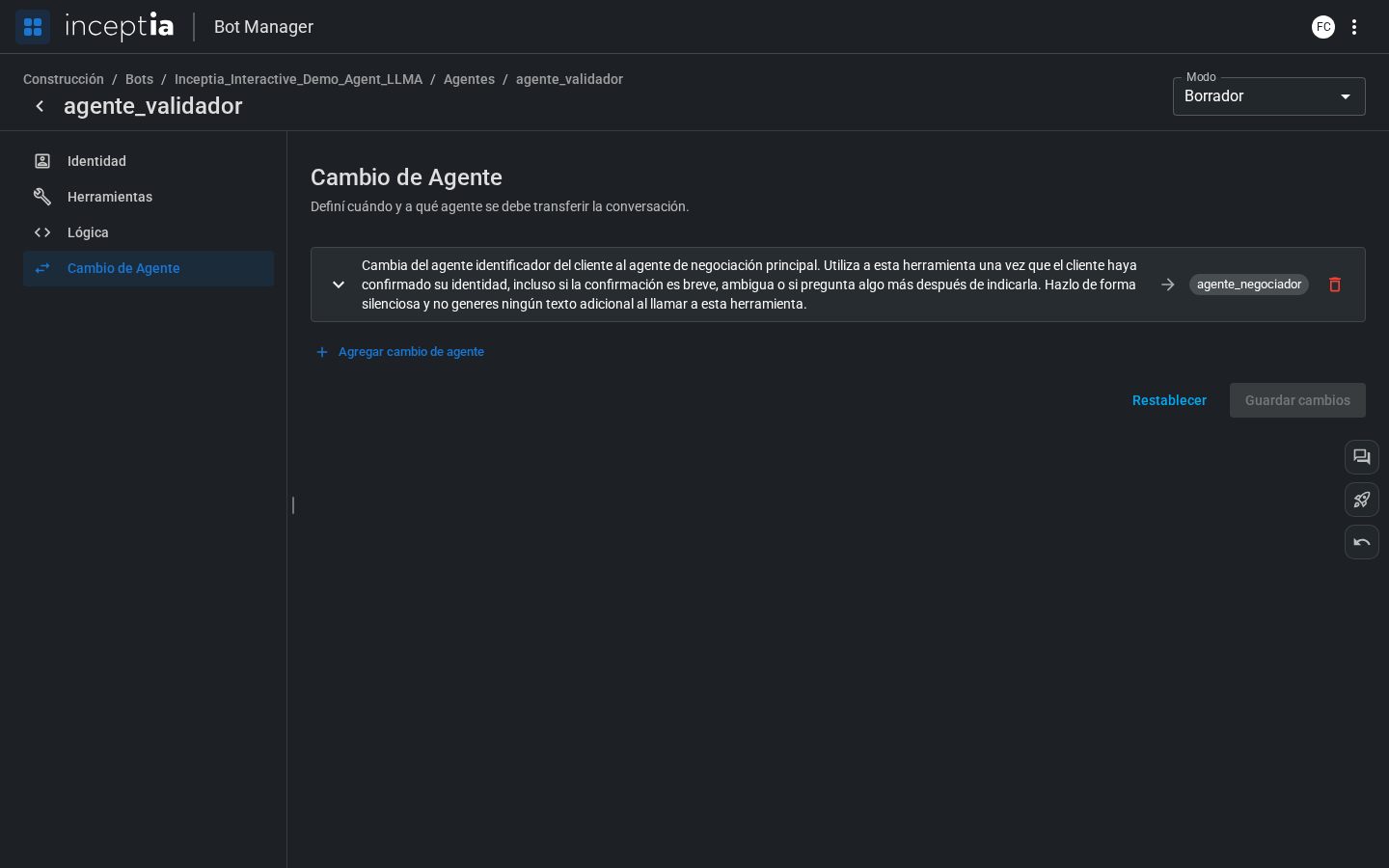
When a bot has multiple agents, it needs to know **when to move from one to another**. The **Agent Handoff** tab is where you configure those handoff rules — if you're not yet sure when it's worth splitting your bot into several agents, see [Design principles](/en/construccion/buenas-practicas/principios-de-diseno).
Each rule has two parts:
1. **Reason for the handoff** — a natural-language description of when the handoff should happen. The LLM uses this text to decide, during the conversation, whether to trigger it.
2. **Destination** — which agent it transfers to. It can be a fixed destination, or it can depend on one or more conditions on context variables (see below).
 ***
## How to add a rule
Inside the agent editor, click the **Agent Handoff** tab.
A new rule is added, expanded and empty.
Describe in natural language when the handoff should happen. Be specific — the LLM uses this text to make the decision. For example: *"when the customer confirms their minimum payment."*
If the handoff always goes to the same agent, select it directly under **Transfer to**. If the destination depends on a variable, add one or more conditions (next section).
***
## Connecting agents by dragging on the Canvas
You can also start a handoff rule without opening this tab: directly from the [canvas](/en/construccion/agentes/canvas), by hovering over the right edge of a node.
A blue connection arrow appears.
***
## How to add a rule
Inside the agent editor, click the **Agent Handoff** tab.
A new rule is added, expanded and empty.
Describe in natural language when the handoff should happen. Be specific — the LLM uses this text to make the decision. For example: *"when the customer confirms their minimum payment."*
If the handoff always goes to the same agent, select it directly under **Transfer to**. If the destination depends on a variable, add one or more conditions (next section).
***
## Connecting agents by dragging on the Canvas
You can also start a handoff rule without opening this tab: directly from the [canvas](/en/construccion/agentes/canvas), by hovering over the right edge of a node.
A blue connection arrow appears.
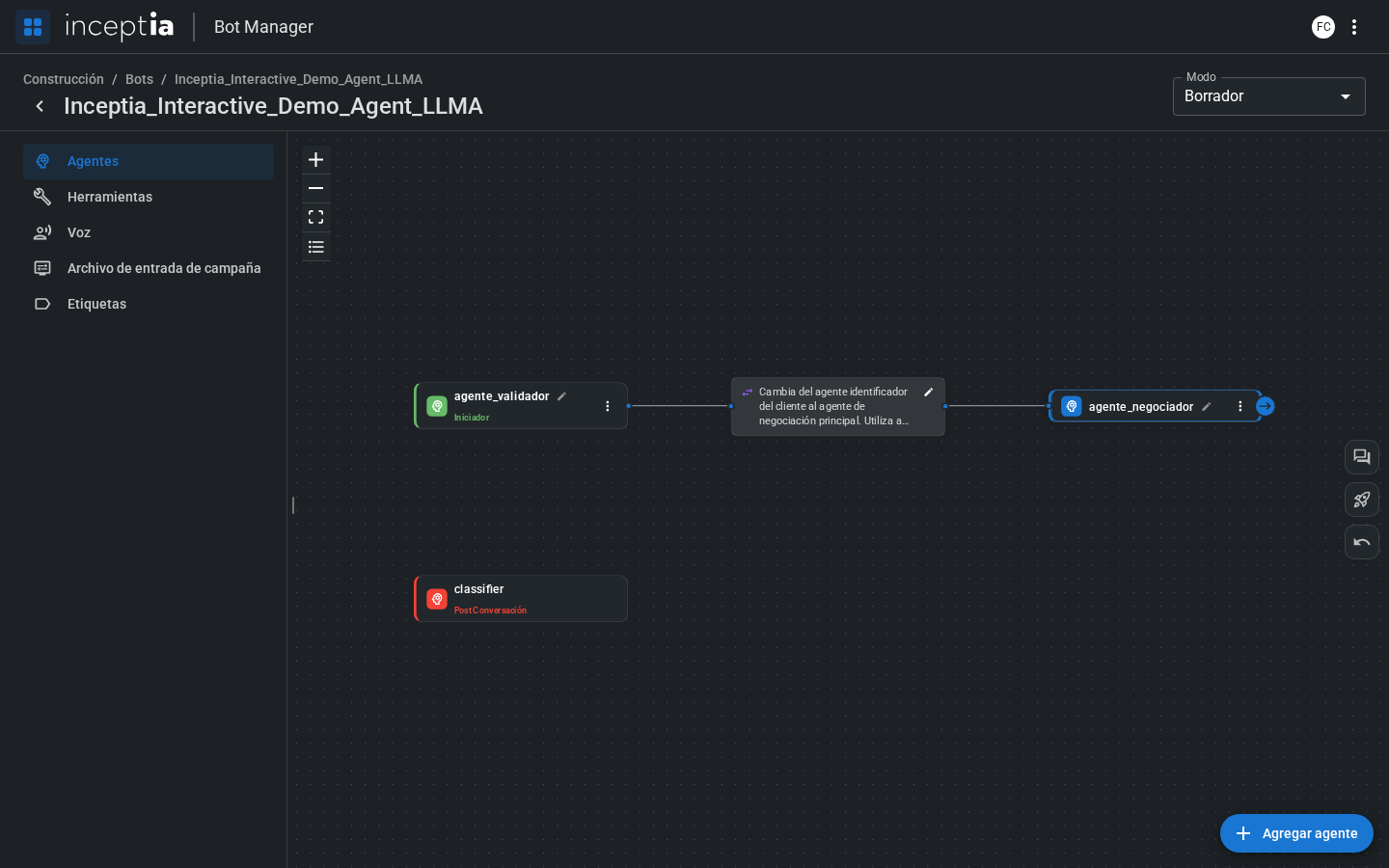 While you drag, a dashed line is drawn between the two agents.
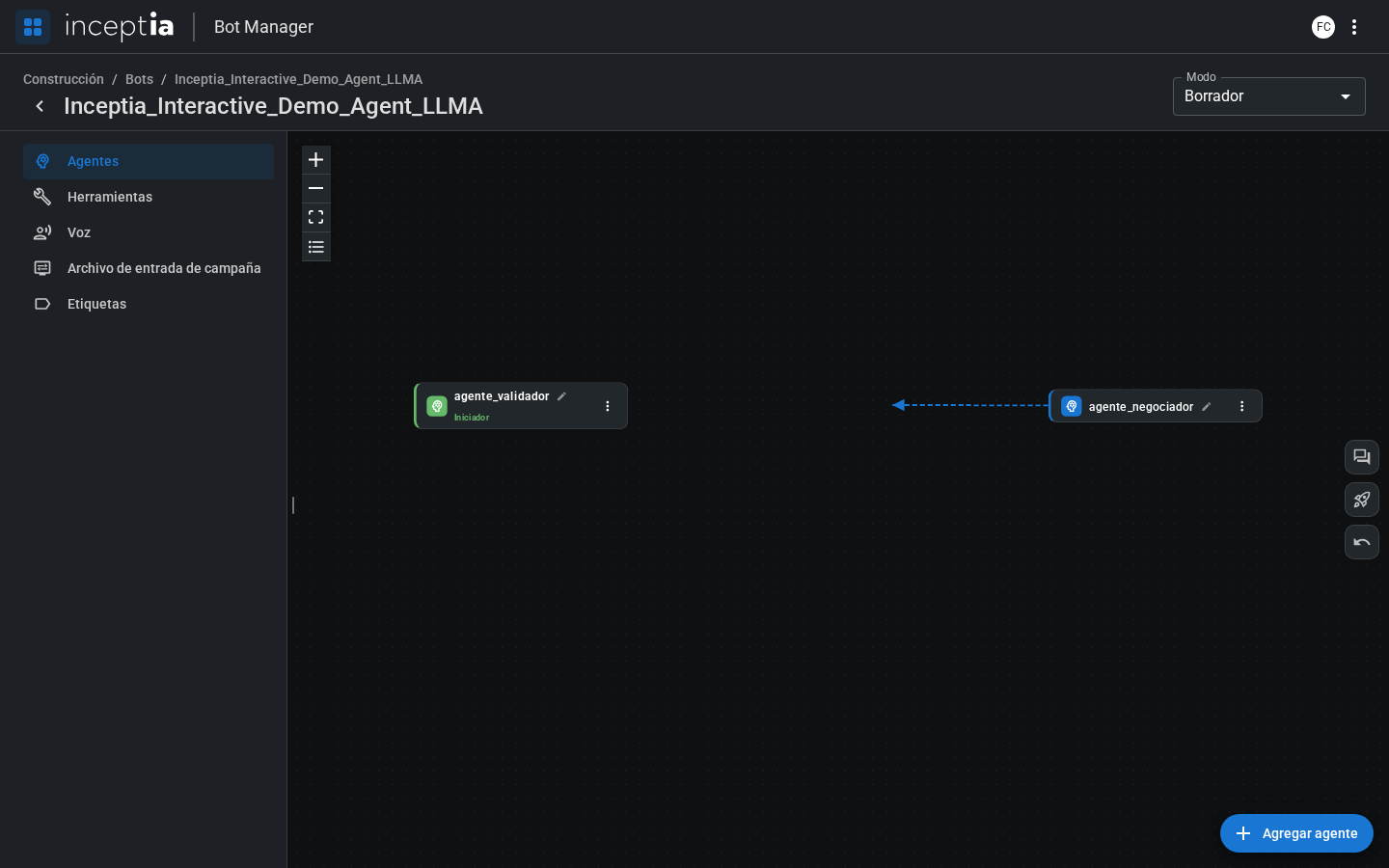 The **Create handoff** panel opens — the same form you saw above (Reason for the handoff, optional conditions, Transfer to), just already preloaded with the destination.
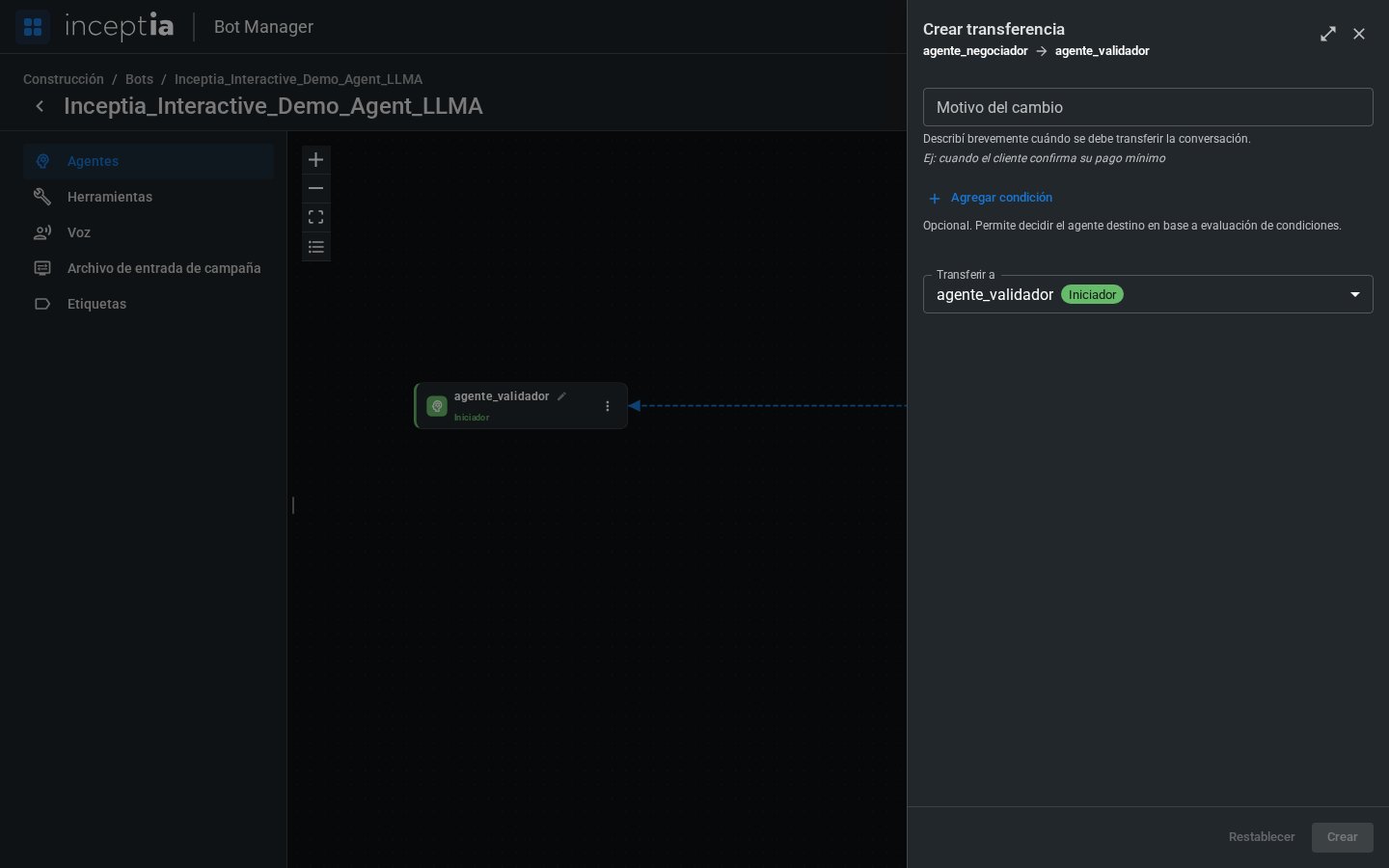 Same as if you'd built it from the Agent Handoff tab.
It's the same rule, two ways to create it: from the source agent's Agent Handoff tab, or by dragging on the canvas. Use whichever feels more convenient depending on whether you're already looking at the full flow or editing a specific agent.
***
## Examples of Reason for the handoff
```
The contact agrees to make a payment and confirms the agreed amount.
```
```
The contact asks to speak with a person or says they don't want to talk to a bot.
```
```
The contact made a payment promise in a previous conversation and is calling to confirm whether it was credited.
```
The most effective Reason for the handoff describes the **contact's intent**, not the exact wording they might use. The LLM is flexible in its interpretation — you don't need to cover every possible phrasing.
***
## Conditions based on context variables
Besides the Reason for the handoff, each rule can have one or more **conditions** that directly compare a context variable against a value — no need to describe it in natural language or write code:
* **Variable** — the variable's name (one from the campaign file, or one you calculated in the [Logic](/en/construccion/agentes/logica) tab).
* **Operator** — the comparison to apply (`=`, `>`, `<`, among others).
* **Value** — the value it's compared against.
You can add several comparisons within the same condition with **Add comparison**, and several conditions with **Add condition** — each condition points to its own destination agent in **Transfer to**. If no condition is met, the bot transfers to the **default agent** you set (optional).
For example, to route based on `pago_minimo` (a numeric variable coming from the campaign file):
| Condition | Transfer to |
| --------------------- | -------------------------------- |
| `pago_minimo` `>` `0` | Payment plan agent |
| *(no condition met)* | General handling agent (default) |
***
## Evaluation order
The bot evaluates conditions **in the order they're loaded**: the first one that's met determines the destination agent. If none is met, the default agent is used (if you configured one). Keep this in mind when ordering conditions that could overlap — the more specific one should go first. It's one of the most common mistakes when building these rules — see [Common mistakes](/en/construccion/buenas-practicas/errores-comunes).
Before publishing, use **[Open conversation](/en/construccion/probar-tu-bot)** to simulate different context values and confirm that each rule triggers the correct agent handoff.
Same as if you'd built it from the Agent Handoff tab.
It's the same rule, two ways to create it: from the source agent's Agent Handoff tab, or by dragging on the canvas. Use whichever feels more convenient depending on whether you're already looking at the full flow or editing a specific agent.
***
## Examples of Reason for the handoff
```
The contact agrees to make a payment and confirms the agreed amount.
```
```
The contact asks to speak with a person or says they don't want to talk to a bot.
```
```
The contact made a payment promise in a previous conversation and is calling to confirm whether it was credited.
```
The most effective Reason for the handoff describes the **contact's intent**, not the exact wording they might use. The LLM is flexible in its interpretation — you don't need to cover every possible phrasing.
***
## Conditions based on context variables
Besides the Reason for the handoff, each rule can have one or more **conditions** that directly compare a context variable against a value — no need to describe it in natural language or write code:
* **Variable** — the variable's name (one from the campaign file, or one you calculated in the [Logic](/en/construccion/agentes/logica) tab).
* **Operator** — the comparison to apply (`=`, `>`, `<`, among others).
* **Value** — the value it's compared against.
You can add several comparisons within the same condition with **Add comparison**, and several conditions with **Add condition** — each condition points to its own destination agent in **Transfer to**. If no condition is met, the bot transfers to the **default agent** you set (optional).
For example, to route based on `pago_minimo` (a numeric variable coming from the campaign file):
| Condition | Transfer to |
| --------------------- | -------------------------------- |
| `pago_minimo` `>` `0` | Payment plan agent |
| *(no condition met)* | General handling agent (default) |
***
## Evaluation order
The bot evaluates conditions **in the order they're loaded**: the first one that's met determines the destination agent. If none is met, the default agent is used (if you configured one). Keep this in mind when ordering conditions that could overlap — the more specific one should go first. It's one of the most common mistakes when building these rules — see [Common mistakes](/en/construccion/buenas-practicas/errores-comunes).
Before publishing, use **[Open conversation](/en/construccion/probar-tu-bot)** to simulate different context values and confirm that each rule triggers the correct agent handoff.