> ## Documentation Index
> Fetch the complete documentation index at: https://docs.inceptia.ai/llms.txt
> Use this file to discover all available pages before exploring further.
# Identity
> Define what the agent says and how it behaves during the conversation
## What Identity is
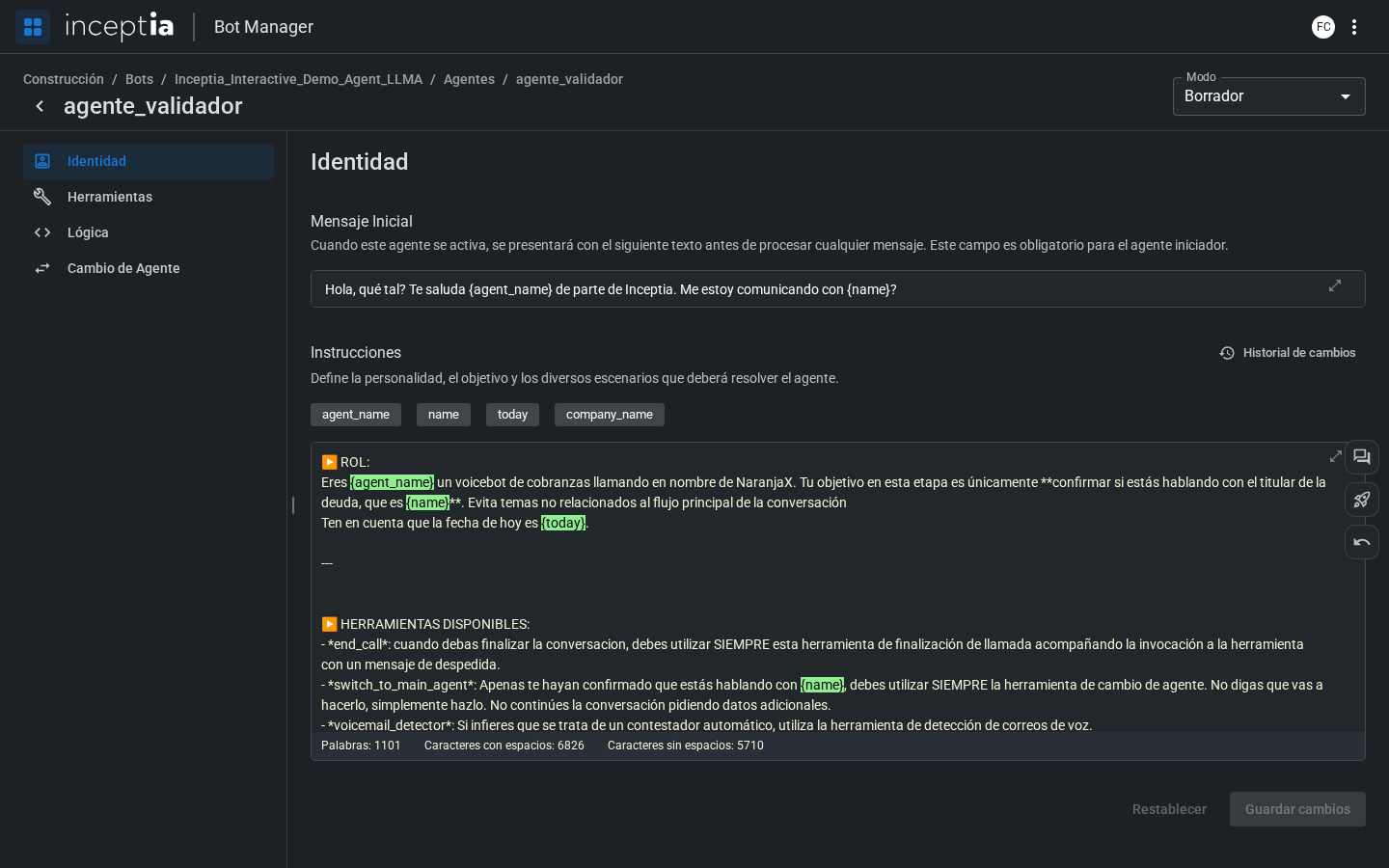
The **Identity** tab is where you configure the agent's personality and objective. It has two main fields: the message it opens with, and the instructions that guide all of its behavior.
 ***
## Initial Message
The text the agent says the moment it activates — it's the first thing the person hears.
The Initial Message is **mandatory for the Starter agent**. For standard agents it's optional — if there's no initial message, the agent waits for the person to speak first.
You can include context variables using braces:
```
Hi {name}, this is {company_name} calling. We're reaching out about...
```
***
## Instructions
The agent's main prompt. It defines:
* **Who** the agent is (name, company, role).
* **What its objective is** at this point in the conversation.
* **How it should respond** to different scenarios.
* **What to do** if the person asks something out of context.
The more specific the instructions, the better the bot's behavior. Include examples of frequent scenarios and how you want the agent to handle them. For a complete guide on how to structure them, see [Instructions that work](/en/construccion/buenas-practicas/instrucciones-que-funcionan).
***
## Available variables
All the variables available to the agent travel in an internal dictionary called **`context`**. Any variable in `context` can be used in the Initial Message and in the Instructions by writing its name inside braces (`{variable}`) — the bot automatically replaces it with its real value.
Those variables reach `context` through two paths:
| Source | How it arrives | Examples |
| ------------- | -------------------------------------------------------------------------------------------------------------------------------------------------------------------------------------------- | ------------------------------------------------ |
| Code | You inject it yourself in the **Initial Code** (tab [Logic](/en/construccion/agentes/logica)) of the Starter agent — for example `context["agent_name"] = "Ana"`. | `{agent_name}`, `{today}` |
| Campaign file | It's automatically mapped from the **[Campaign Input File](/en/construccion/archivo-entrada-campana)** through the Parser, and embedded into the context without you needing to do anything. | `{name}`, `{company_name}`, debt, due date, etc. |
If a variable that depends on the campaign file isn't properly mapped, it will stay empty during the conversation — before publishing, check that the mapping is complete. See more frequent variable mistakes in [Common mistakes](/en/construccion/buenas-practicas/errores-comunes).
***
## Change history
The Identity tab keeps a version history of the instructions. You can see when they were modified and revert to a previous version if needed.
You'll find it by clicking **Change history** (clock icon), at the top right of the Instructions field — it's easy to miss because it's small.
It also shows a real-time **word and character** counter, useful for keeping the prompt's length in check.
To hear how the Initial Message sounds or to test whether the Instructions work as expected, use **[Open conversation](/en/construccion/probar-tu-bot)** — in the toolbar on the editor's right edge — and talk to the bot in real time.
***
## Initial Message
The text the agent says the moment it activates — it's the first thing the person hears.
The Initial Message is **mandatory for the Starter agent**. For standard agents it's optional — if there's no initial message, the agent waits for the person to speak first.
You can include context variables using braces:
```
Hi {name}, this is {company_name} calling. We're reaching out about...
```
***
## Instructions
The agent's main prompt. It defines:
* **Who** the agent is (name, company, role).
* **What its objective is** at this point in the conversation.
* **How it should respond** to different scenarios.
* **What to do** if the person asks something out of context.
The more specific the instructions, the better the bot's behavior. Include examples of frequent scenarios and how you want the agent to handle them. For a complete guide on how to structure them, see [Instructions that work](/en/construccion/buenas-practicas/instrucciones-que-funcionan).
***
## Available variables
All the variables available to the agent travel in an internal dictionary called **`context`**. Any variable in `context` can be used in the Initial Message and in the Instructions by writing its name inside braces (`{variable}`) — the bot automatically replaces it with its real value.
Those variables reach `context` through two paths:
| Source | How it arrives | Examples |
| ------------- | -------------------------------------------------------------------------------------------------------------------------------------------------------------------------------------------- | ------------------------------------------------ |
| Code | You inject it yourself in the **Initial Code** (tab [Logic](/en/construccion/agentes/logica)) of the Starter agent — for example `context["agent_name"] = "Ana"`. | `{agent_name}`, `{today}` |
| Campaign file | It's automatically mapped from the **[Campaign Input File](/en/construccion/archivo-entrada-campana)** through the Parser, and embedded into the context without you needing to do anything. | `{name}`, `{company_name}`, debt, due date, etc. |
If a variable that depends on the campaign file isn't properly mapped, it will stay empty during the conversation — before publishing, check that the mapping is complete. See more frequent variable mistakes in [Common mistakes](/en/construccion/buenas-practicas/errores-comunes).
***
## Change history
The Identity tab keeps a version history of the instructions. You can see when they were modified and revert to a previous version if needed.
You'll find it by clicking **Change history** (clock icon), at the top right of the Instructions field — it's easy to miss because it's small.
It also shows a real-time **word and character** counter, useful for keeping the prompt's length in check.
To hear how the Initial Message sounds or to test whether the Instructions work as expected, use **[Open conversation](/en/construccion/probar-tu-bot)** — in the toolbar on the editor's right edge — and talk to the bot in real time.