> ## Documentation Index
> Fetch the complete documentation index at: https://docs.inceptia.ai/llms.txt
> Use this file to discover all available pages before exploring further.
# Draft and Production Mode
> Two states for your bot: one to experiment safely, another to run live
## The two modes
Every bot has two versions that coexist independently:
Your workspace. You can make any changes you want — modify instructions, add tools, adjust the voice — without affecting conversations already in progress.
The bot's active version. It's the one that talks to people in live campaigns. Changes only reach it when you publish them.
***
## How to switch between modes
At the top right of the bot editor you'll find a dropdown with the **Draft** and **Production** options. You can switch between the two to see how each version is configured.
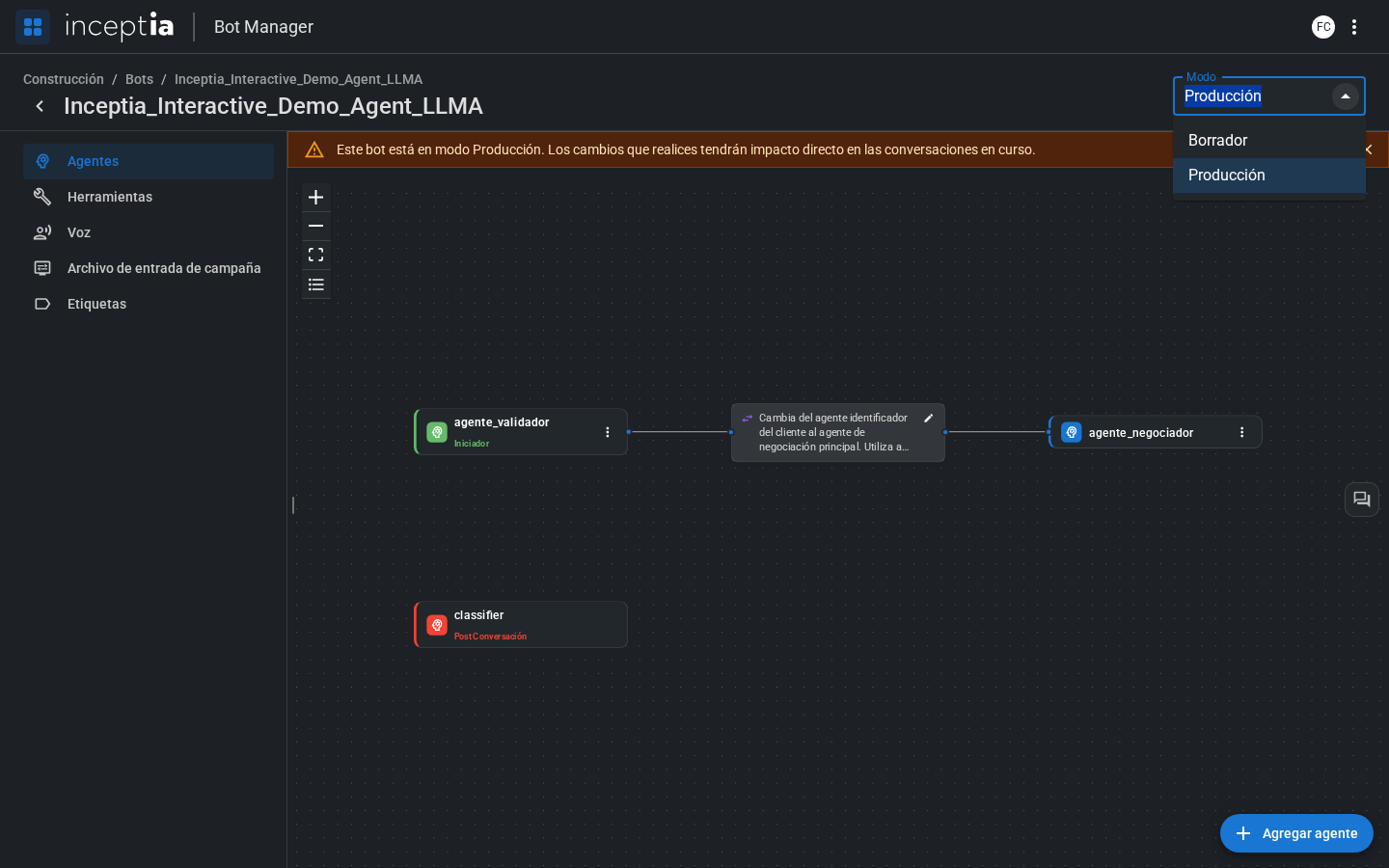 Every change you make in the editor modifies the **active mode**. Make sure you're in Draft before experimenting.
***
## The floating toolbar
When you're in **Draft Mode**, a fixed toolbar with three actions appears on the right edge of the editor. It follows you no matter which tab you're on (Agents, Voice, Tools, etc.):
Every change you make in the editor modifies the **active mode**. Make sure you're in Draft before experimenting.
***
## The floating toolbar
When you're in **Draft Mode**, a fixed toolbar with three actions appears on the right edge of the editor. It follows you no matter which tab you're on (Agents, Voice, Tools, etc.):
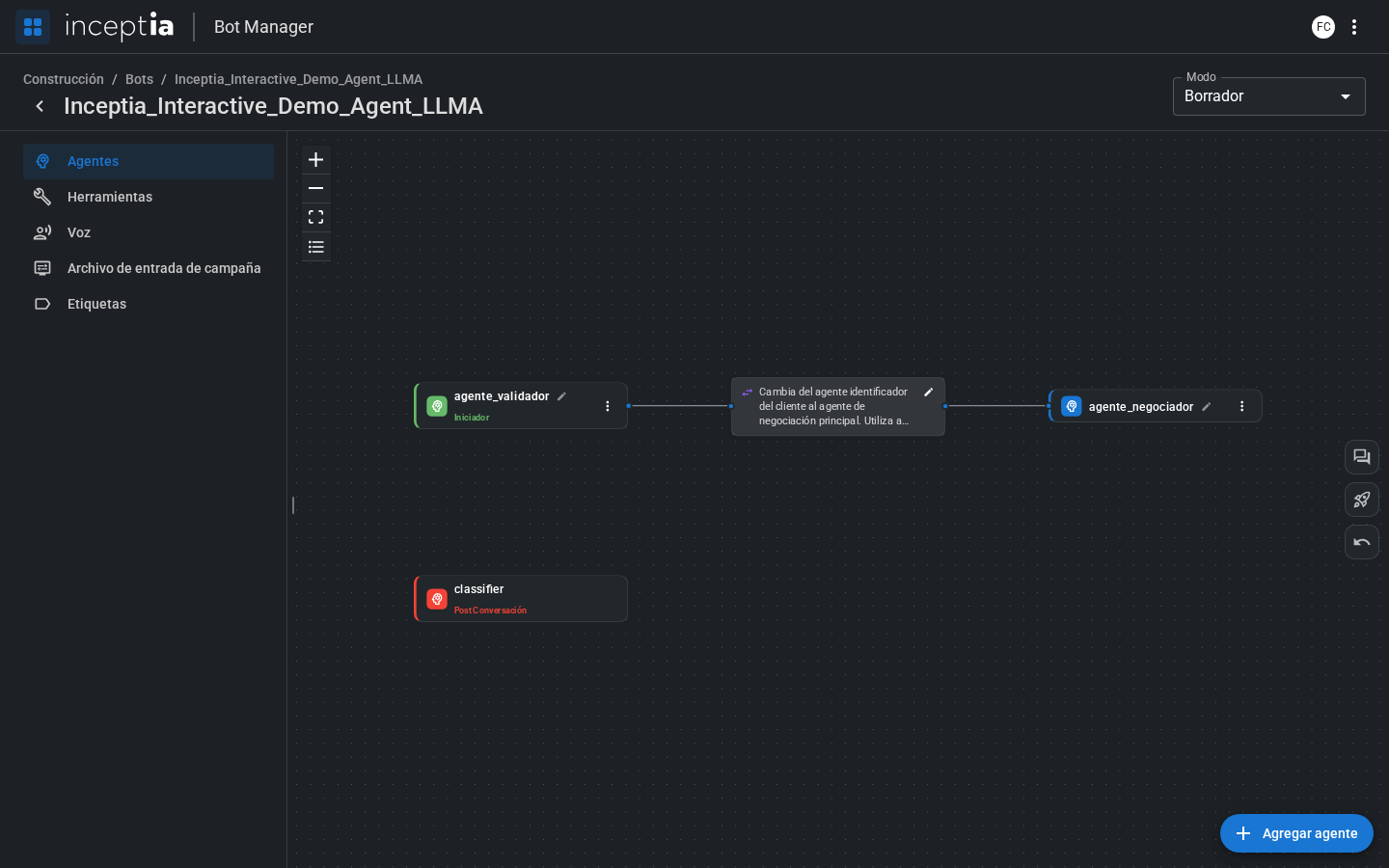 * **Open conversation** — test the bot in real time. See [Test your bot](/en/construccion/probar-tu-bot).
* **Deploy** — publishes the current Draft to Production.
* **Reset from production** — discards the changes in Draft and replaces them with the current Production content.
In **Production Mode** you only see the **Open conversation** button — Deploy and Reset don't make sense if you're already looking at the live version.
***
## Publishing to Production
When your changes in Draft are ready, use the toolbar's **Deploy** 🚀 button to publish them to Production.
* **Open conversation** — test the bot in real time. See [Test your bot](/en/construccion/probar-tu-bot).
* **Deploy** — publishes the current Draft to Production.
* **Reset from production** — discards the changes in Draft and replaces them with the current Production content.
In **Production Mode** you only see the **Open conversation** button — Deploy and Reset don't make sense if you're already looking at the live version.
***
## Publishing to Production
When your changes in Draft are ready, use the toolbar's **Deploy** 🚀 button to publish them to Production.
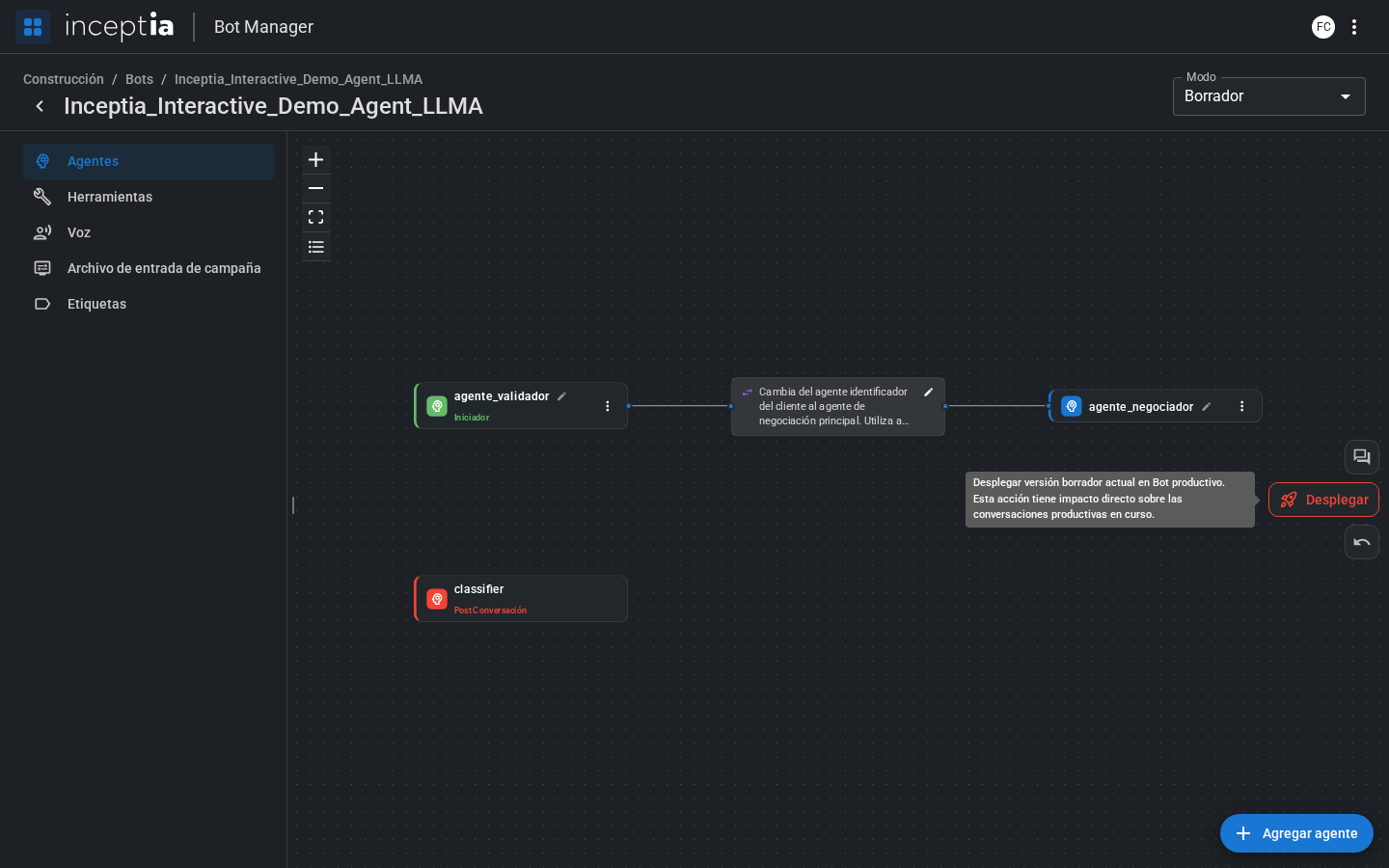 **This affects ongoing conversations.** If the bot is being used in an active campaign, the deploy updates the bot's behavior in real time — including calls already in progress. Publish during low-activity periods whenever possible.
***
## Reset from production
If you start working in Draft and Production changes in the meantime (because someone else published something), your Draft can end up outdated or accidentally overwrite those changes. To avoid that, use **Reset from production** ↩️: it discards everything you had in Draft and replaces it with the current Production content, so you start editing from an up-to-date base.
**This affects ongoing conversations.** If the bot is being used in an active campaign, the deploy updates the bot's behavior in real time — including calls already in progress. Publish during low-activity periods whenever possible.
***
## Reset from production
If you start working in Draft and Production changes in the meantime (because someone else published something), your Draft can end up outdated or accidentally overwrite those changes. To avoid that, use **Reset from production** ↩️: it discards everything you had in Draft and replaces it with the current Production content, so you start editing from an up-to-date base.
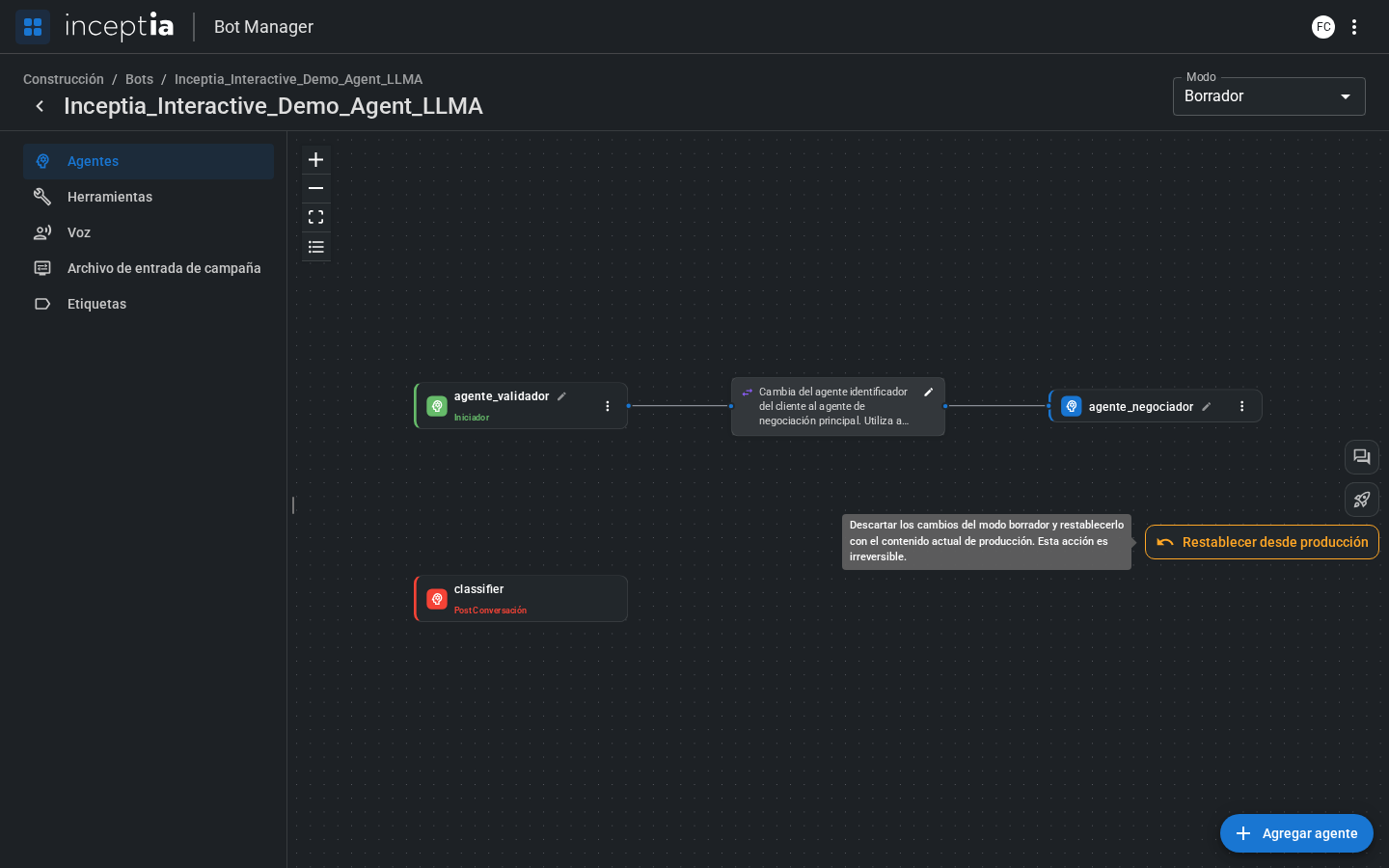 **This action is irreversible.** You lose any unpublished changes in Draft. Use it before you start editing, not in the middle of work you haven't published yet.
***
## Recommended workflow
Check that the dropdown says **Draft** before editing. If you suspect Production changed since last time, use **Reset from production** before you start.
Use **Open conversation** in the floating toolbar to test the updated behavior.
Once the bot behaves the way you want, click **Deploy** to publish to Production.
**This action is irreversible.** You lose any unpublished changes in Draft. Use it before you start editing, not in the middle of work you haven't published yet.
***
## Recommended workflow
Check that the dropdown says **Draft** before editing. If you suspect Production changed since last time, use **Reset from production** before you start.
Use **Open conversation** in the floating toolbar to test the updated behavior.
Once the bot behaves the way you want, click **Deploy** to publish to Production.