> ## Documentation Index
> Fetch the complete documentation index at: https://docs.inceptia.ai/llms.txt
> Use this file to discover all available pages before exploring further.
# Voice
> The bot's voice: choose the provider, model, and voice it will use on calls
## What the Voice configuration is
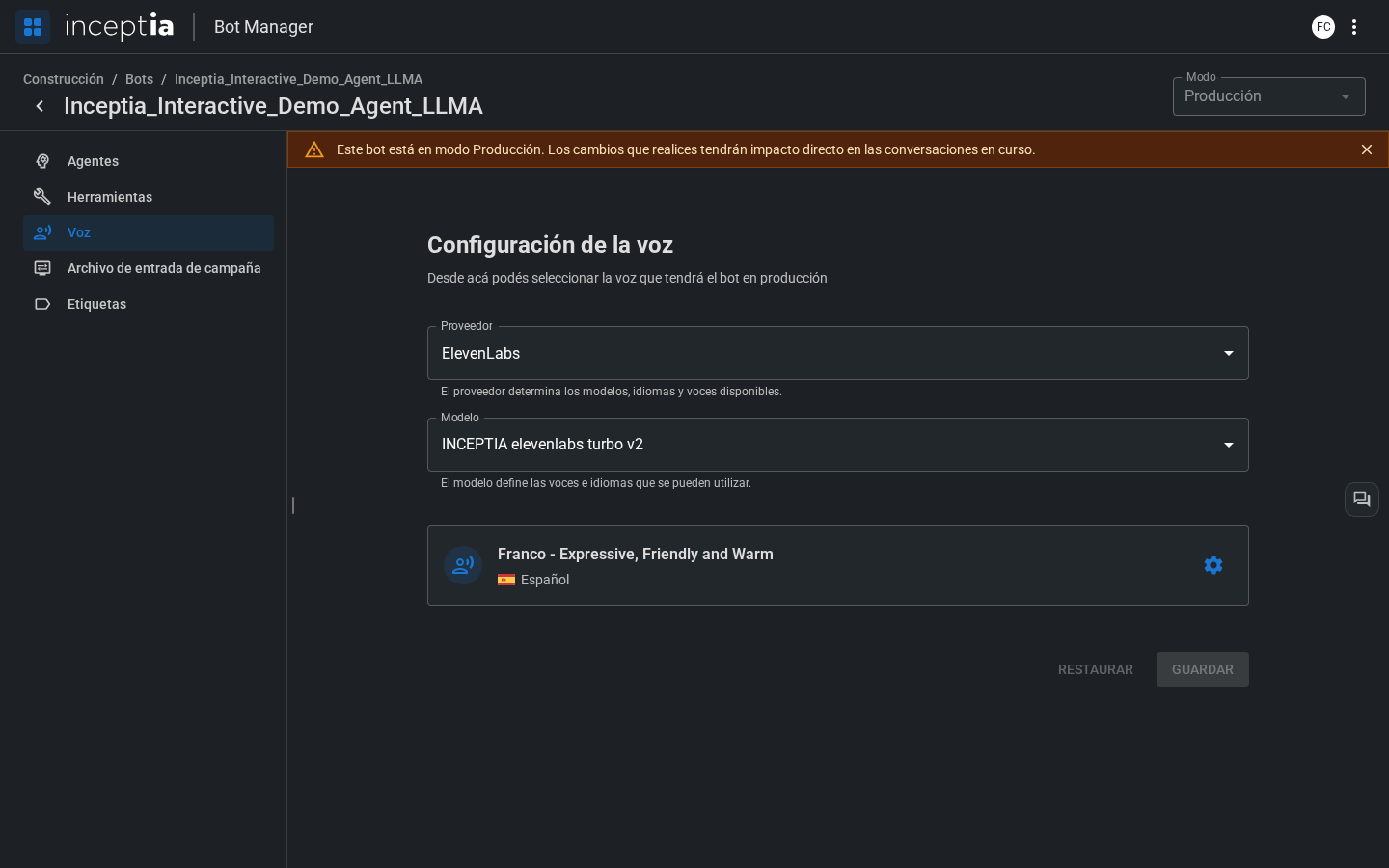
The **Voice** tab controls the **text-to-speech synthesis** engine (TTS). It's what turns the bot's responses into audio for the call.
The choice of voice has a direct impact on the contact's experience — a clear, natural voice that fits the context builds more trust.
The voice is only part of sounding natural — how you write the Instructions matters too. See the [voice writing rules (TTS)](/en/construccion/buenas-practicas/instrucciones-que-funcionan).
 ***
## Parameters
### Provider
Inceptia supports multiple TTS providers. Each has different characteristics in terms of naturalness, latency, and voice catalog:
* **ElevenLabs** — High naturalness, wide catalog, ideal for premium experiences.
* **Azure** — High availability, neutral voices in several languages.
* Other providers available depending on your account's configuration.
### Model
Within each provider, you can select the specific model that best fits your case. More advanced models tend to sound more natural but can have higher latency.
***
## How to change the voice
On the current voice's card, click the gear icon ⚙ on the right. A modal opens with two tabs: **Voices** and **Advanced settings**.
Inside the **Voices** tab, the **Language** selector at the top determines which voices are available to choose from.
***
## Parameters
### Provider
Inceptia supports multiple TTS providers. Each has different characteristics in terms of naturalness, latency, and voice catalog:
* **ElevenLabs** — High naturalness, wide catalog, ideal for premium experiences.
* **Azure** — High availability, neutral voices in several languages.
* Other providers available depending on your account's configuration.
### Model
Within each provider, you can select the specific model that best fits your case. More advanced models tend to sound more natural but can have higher latency.
***
## How to change the voice
On the current voice's card, click the gear icon ⚙ on the right. A modal opens with two tabs: **Voices** and **Advanced settings**.
Inside the **Voices** tab, the **Language** selector at the top determines which voices are available to choose from.
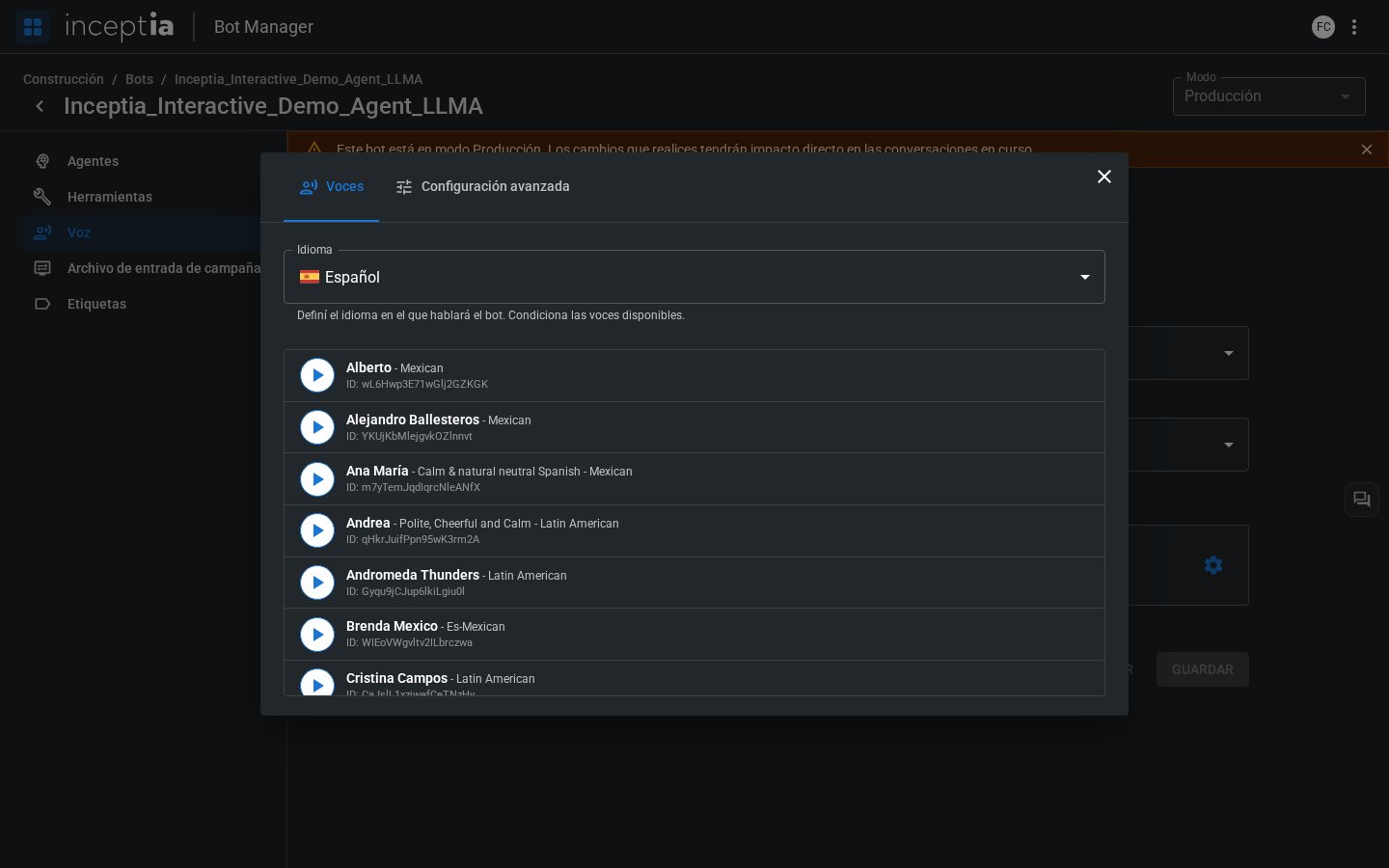 Every voice in the list has a ▶ button that plays an audio sample. Use it to compare before deciding — no need to choose blindly by name.
Hovering over a voice reveals the **Use this voice** button. The voice currently in use is marked as **In use**.
Every voice in the list has a ▶ button that plays an audio sample. Use it to compare before deciding — no need to choose blindly by name.
Hovering over a voice reveals the **Use this voice** button. The voice currently in use is marked as **In use**.
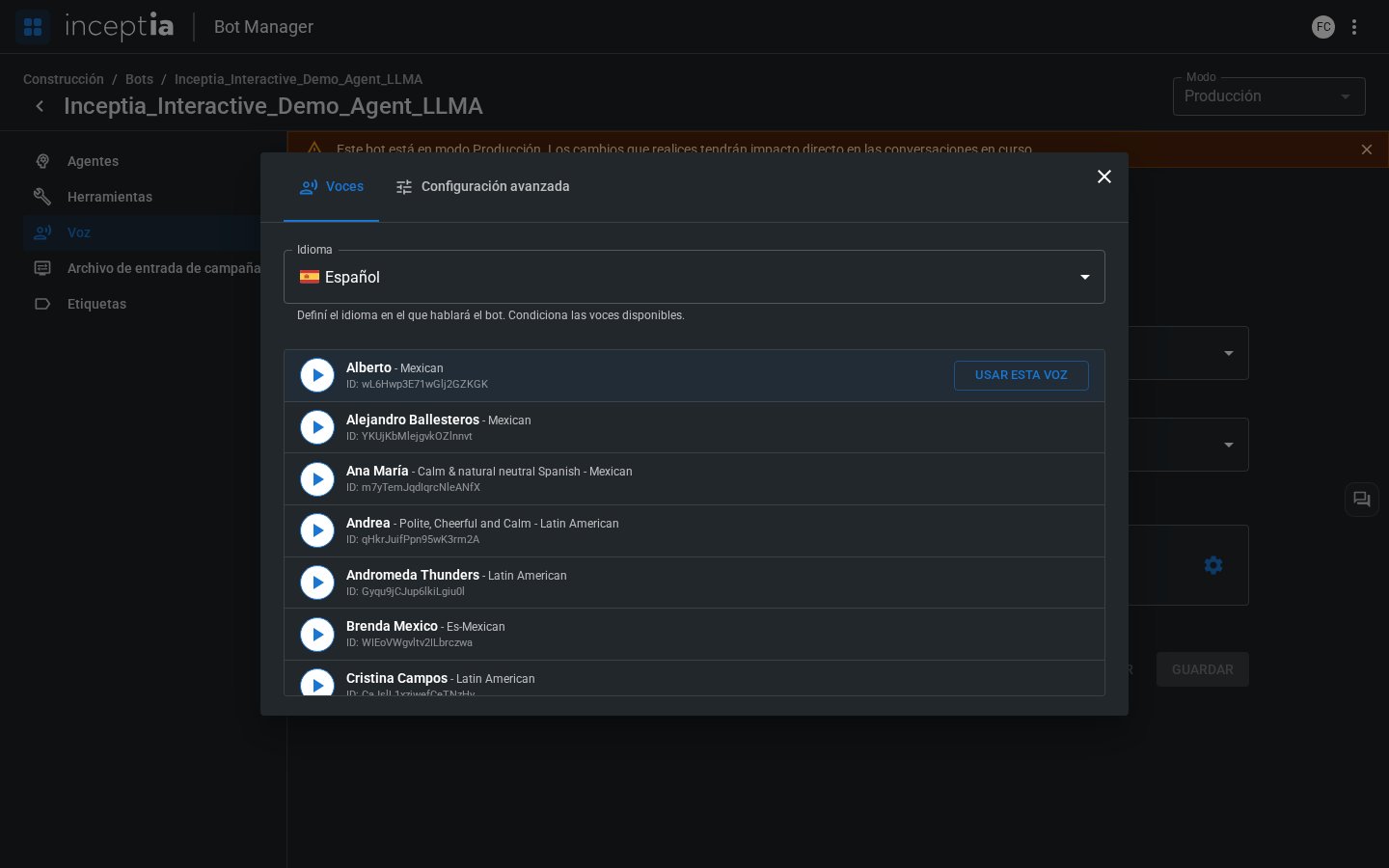 Close the modal and click **Save**. You'll see a confirmation dialog before the change is applied — once confirmed, the new voice becomes active in the mode you're working in (Draft or Production).
If you're in **Production Mode**, saving a voice change impacts ongoing conversations immediately. If you want to try a new voice risk-free, do it in **Draft Mode** first.
***
## Try any voice with your own text
Besides the quick sample (▶) in the list, the **Advanced settings** tab of the same modal lets you hear **any phrase you want** with the selected voice — useful for checking how a specific greeting, a proper name, or an amount sounds before choosing.
Close the modal and click **Save**. You'll see a confirmation dialog before the change is applied — once confirmed, the new voice becomes active in the mode you're working in (Draft or Production).
If you're in **Production Mode**, saving a voice change impacts ongoing conversations immediately. If you want to try a new voice risk-free, do it in **Draft Mode** first.
***
## Try any voice with your own text
Besides the quick sample (▶) in the list, the **Advanced settings** tab of the same modal lets you hear **any phrase you want** with the selected voice — useful for checking how a specific greeting, a proper name, or an amount sounds before choosing.
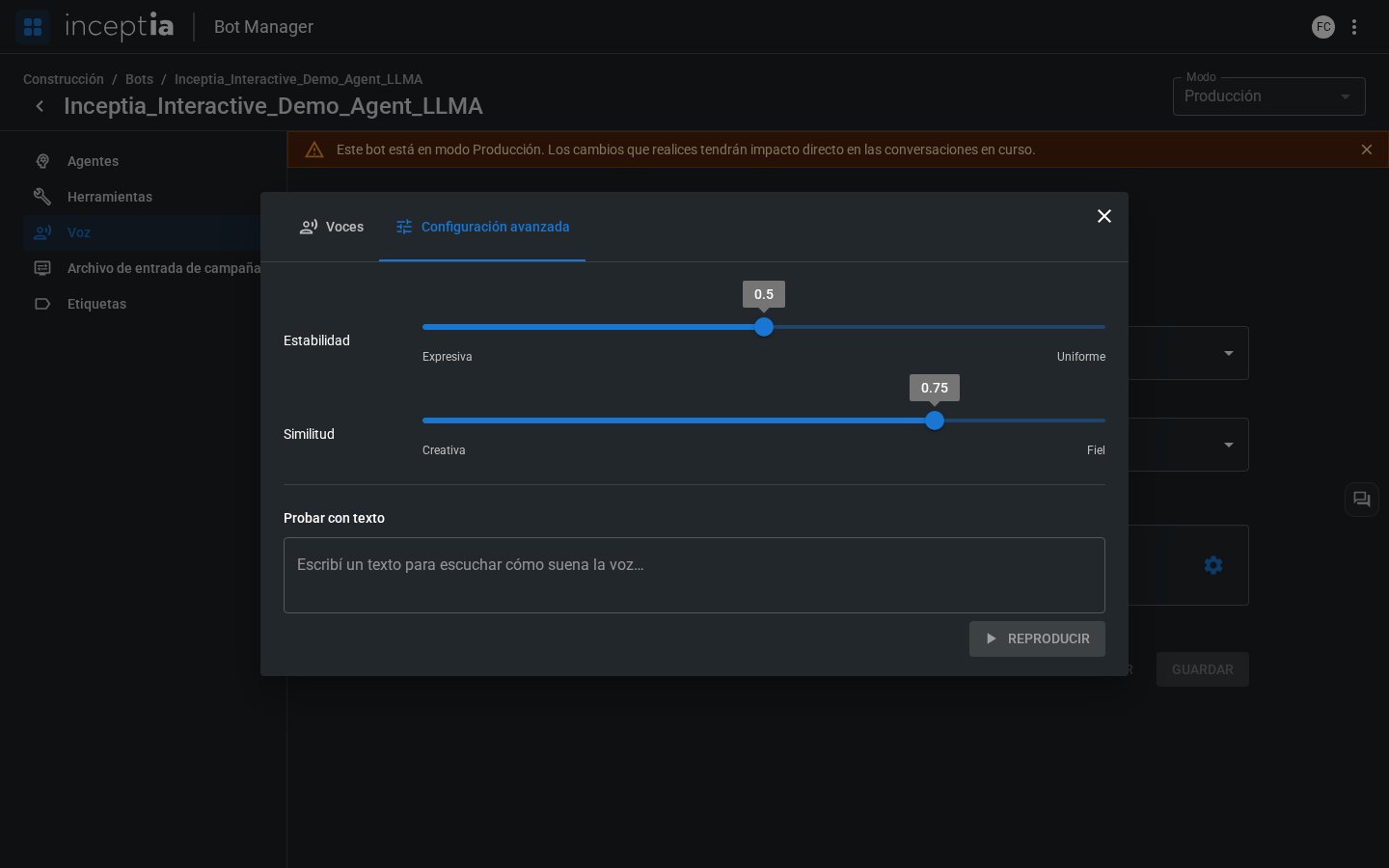 * **Stability** — from "Expressive" to "Uniform." Lower values sound more expressive but less consistent between phrases; higher values sound more even.
* **Similarity** — from "Creative" to "Faithful." Controls how closely the synthesis sticks to the voice's original timbre.
* **Test with text** — type any phrase in the text field and tap **Play** to hear it with the current voice and parameters.
Before saving a voice change, type a real phrase the bot is going to say into "Test with text" — for example an agent's Initial Message — to confirm it sounds good with names, amounts, or dates from your use case.
***
## Considerations
The voice configuration applies to the entire bot. All of the bot's agents use the same voice — it's not possible to assign different voices per agent.
Choose a voice that's coherent with the agent's profile as defined in the Instructions. If the agent introduces itself as "Lucía from Customer Service," the voice should sound like someone with that profile.
* **Stability** — from "Expressive" to "Uniform." Lower values sound more expressive but less consistent between phrases; higher values sound more even.
* **Similarity** — from "Creative" to "Faithful." Controls how closely the synthesis sticks to the voice's original timbre.
* **Test with text** — type any phrase in the text field and tap **Play** to hear it with the current voice and parameters.
Before saving a voice change, type a real phrase the bot is going to say into "Test with text" — for example an agent's Initial Message — to confirm it sounds good with names, amounts, or dates from your use case.
***
## Considerations
The voice configuration applies to the entire bot. All of the bot's agents use the same voice — it's not possible to assign different voices per agent.
Choose a voice that's coherent with the agent's profile as defined in the Instructions. If the agent introduces itself as "Lucía from Customer Service," the voice should sound like someone with that profile.