

How to reach Operations
1
Log in to the platform
Go to ts.inceptia.ai and enter your credentials. If your organization
uses an address of its own, it’s the one your Customer Admin gave you.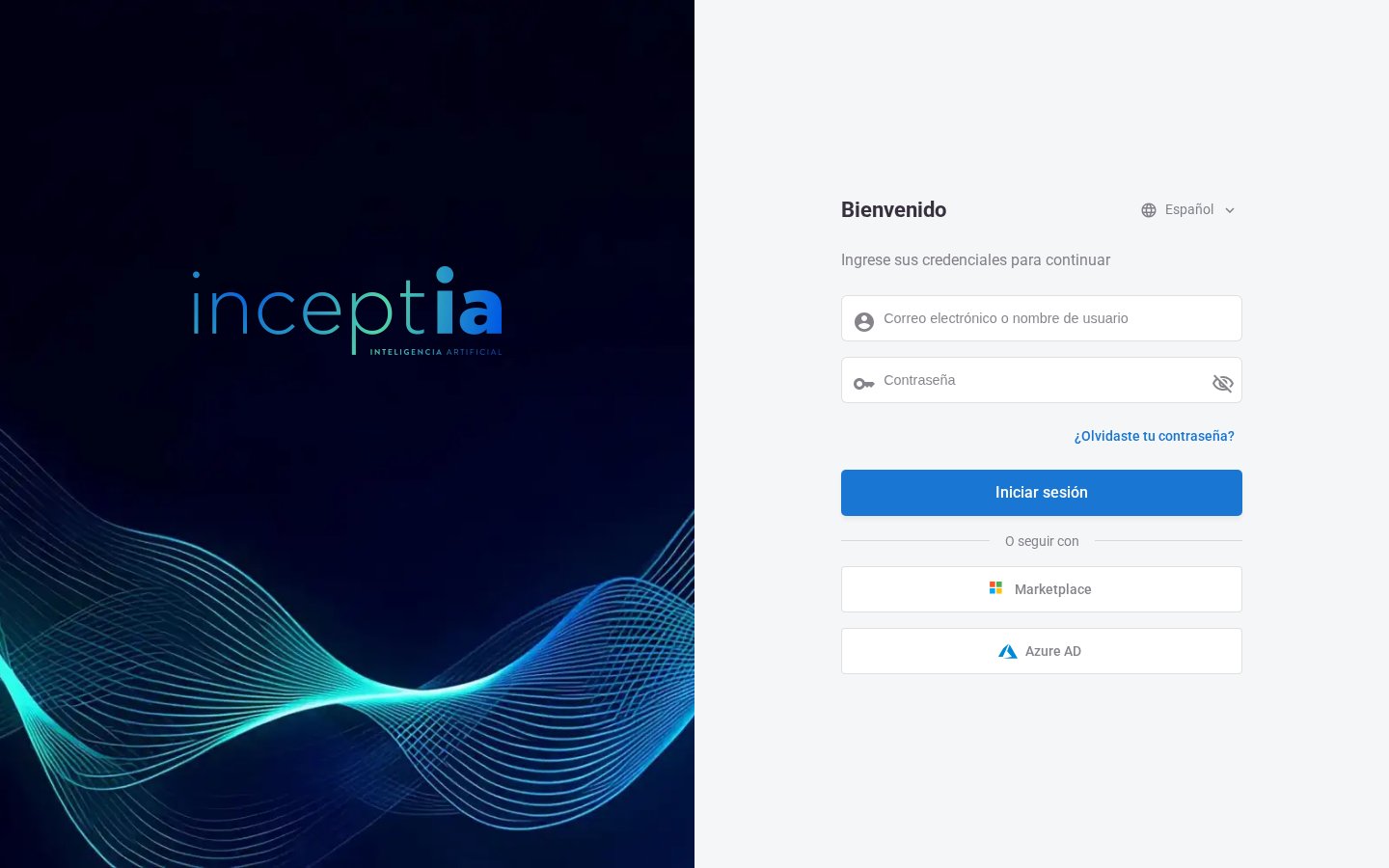
2
Open the module menu
At the top left, click the grid icon (⊞) and select Operations.
3
Pick where to start
The module opens on Bots, its grid. From the same menu you can go to Campaign monitoring.
How the platform is organized
The platform is split into modules, and the grid icon lists them all. Operations is one of them:The menu doesn’t show the same thing to everyone: each module and each section has its own permission. If one is missing, ask your Customer Admin, who manages your organization’s users.
The three levels of Operations
Inside the module you go down three steps, and they’re worth keeping straight because the left menu changes at each one:1
The module
Operations has two entries: Bots and Campaign monitoring.
2
A bot
From the Bots grid you pick one and go in. The menu switches to that bot’s sections.
3
A campaign or a case
Inside a section you open a campaign, and inside it one specific case.
Operations / Bots / <your bot> / Campaigns.
Level 1 — The module’s two entries
Entering the module leaves you on the first of the two your user is allowed to see.
Level 2 — A bot’s sections
Which ones appear depends on the bot type and on your permissions. Outbound bot, which calls a list of cases:
Inbound bot, which answers incoming calls: Case search and Exports.
The screens, one by one
Bots
The bot grid: find one, see how it’s doing and go in to work on it.
Campaign monitoring
Every campaign of every bot in a single table, and the actions on them.
Campaigns
Follow a campaign’s progress, understand its metrics and act on it.
Create a campaign
Set up a campaign: pick the bot, upload the case file and confirm.
Case search
Find one specific case across all of a bot’s campaigns and open its conversation.
Exports
The downloads you requested, their status and their file.
Tendencies
How a bot has been working over time: contactability and handled cases.
Rest rules
How long a case stays without being contacted again, based on how the call ended.
FAQ
Why a case wasn’t called, why a user can’t see their bot, and other situations that span several screens.
Users is a module of its own, not a section of Operations, but its page lives here because it’s what the same person looks at: Users.